Group Pose
Be it alone or with friends, this mode can be used to pose while repeating your last executed emote or action on loop. Adjust the camera, lighting, and color filters to take the perfect shot!
— In-game Description
 Group Pose (also known as GPose) is a photo mode that allows control over various elements such as camera, character animations, and lighting for the purpose of taking photos.
Accessing Group Pose
Group pose can be accessed with the /gpose command or through the  Actions & Traits menu -> Extras sub-menu.
Restrictions
- Group Pose cannot be used when engaged in combat
Controls
- Tilt Camera: Angle camera up or down
- Pan Camera: Angle camera left or right
- Twist Camera: Tilt camera left or right
- Move Camera: Change position of camera relative to target
- Change Focus: Moves the camera to focus on another target
- Current target is indicated on the bottom left-hand corner of the UI
- When entering Group Pose the Player's character is the default target
- Zoom In/Out: Zooms in/out on the target
- This is different than Zoom (Camera Distance) which changes the actual distance between the camera and the target
Saved Screenshots
For Players on computer, screenshots taken with the Print Screen button can have the default save path changed by going to System Configuration -> Other Settings -> Screenshot Folder.
The format of the saved screenshot can be changed between PNG (for higher quality at a larger file size) and JPEG (standard quality at a lower file size) by going to System Configuration -> Other Settings -> Screenshot Format.
Main Controls
| Control | Description |
|---|---|
 Face Camera Face Camera
|
All controlled actors will face the camera.
Does not include actors that have had their motions disabled. |
 Disable/Enable Camera Lighting 1 Disable/Enable Camera Lighting 1
|
Turns off/on the first light in Lighting Settings. |
 Disable/Enable All Motion Disable/Enable All Motion
|
Freezes all controlled actors. |
 Disable/Enable Target Motion Disable/Enable Target Motion
|
Freezes currently targeted actor. Current target will be shown in the bottom left corner of the Group Pose Settings UI. |
 Stop Time/Weather Stop Time/Weather
|
Stops the in-game time and weather from changing. |
 Toggle Battle Effects On/Off Toggle Battle Effects On/Off
|
Turns off/on battle VFX while in Group Pose. |
 Portrait Mode Portrait Mode
|
Toggles portrait mode, rotating the screen 90 degrees to fit a vertical composition. |
 Reset Limb Darkening Reset Limb Darkening
|
Resets the "Limb Darkening" effect set in Screen Settings to 0 |
 Reset Camera Reset Camera
|
Returns camera to starting position when entering Group Pose |
 Camera Settings
Zoom (Camera Distance)
Moves the camera closer to/further from the target.
- The arrow buttons to the right move the camera in 25 degree increments.
-
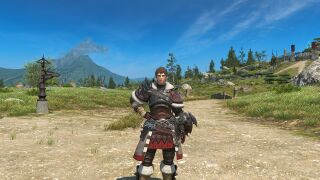 Camera Distance: 100 (Default)
 -
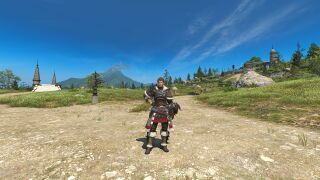 Camera Distance: 0
 -
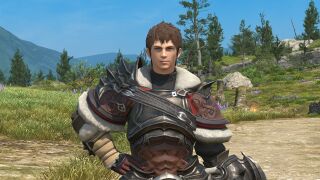 Camera Distance: 200


Roll Angle
Rotates the camera horizontally.
- Dragging the slider to the left rotates the camera clockwise, dragging the slider to the right rotates counter-clockwise.

Chromatic Aberration
Adds a chromatic aberration effect resulting in a blue, green, and red fringe around objects and characters near the edges of the screen.
Manual brightness adjustment
Adjusts the overall brightness of the scene.
- Dragging the slider to the left reduces the brightness, dragging the slider to the right increases the brightness.
-
 Brightness: 0
 -
 Brightness: 100
 -
 Brightness: 200


Color Filter
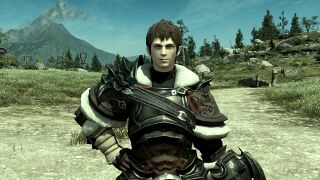
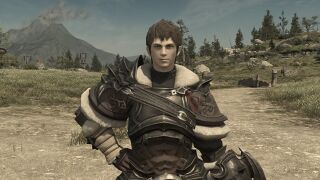
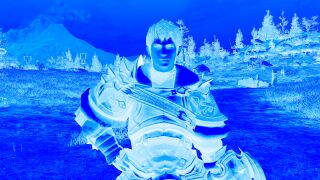
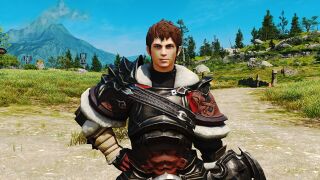
Applies a filter over the camera, with a 'Filter Intensity' slider to adjust the intensity.
- Setting the slider to 0 will make it invisible, while 100 will apply it max strength.
Gallery of Color Filters
-
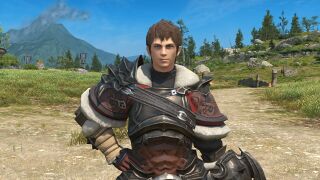 Normal (No filter)
 -
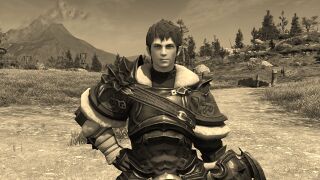 Sepia 1
 -
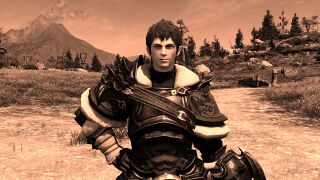 Sepia 2
 -
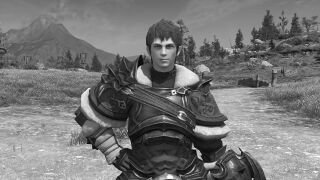 Monochrome 1
 -
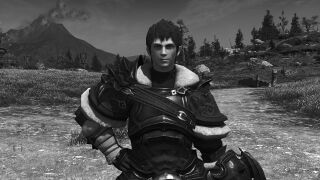 Monochrome 2
 -
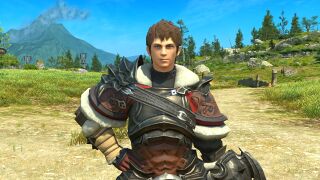 Bright 1
 -
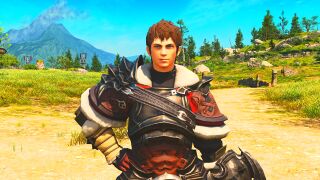 Bright 2
 -
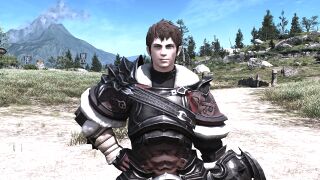 Bright 3
 -
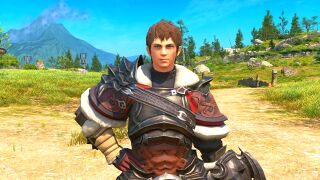 Bright 4
 -
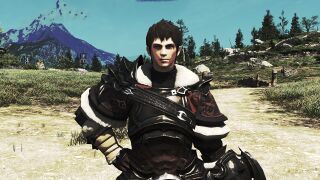 Posterization 1
 -
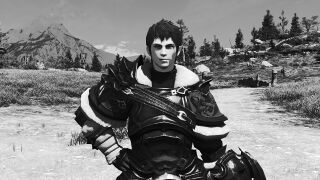 Posterization 2
 -
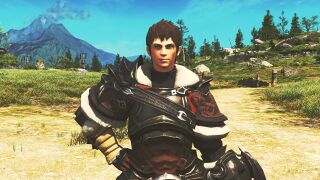 Colored Pencil
 -
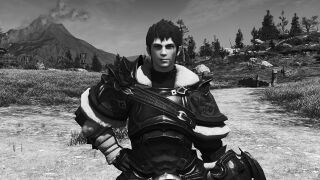 Pencil
 -
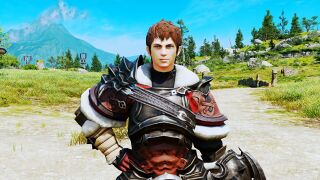 Colored Marker 1
 -
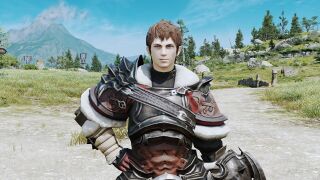 Colored Marker 2
 -
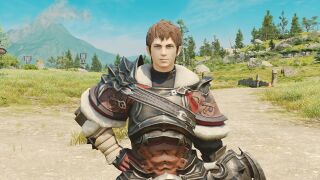 Pastel 1
 -
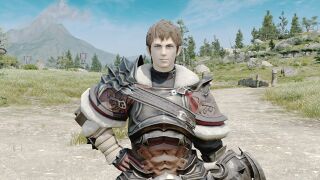 Pastel 2
 -
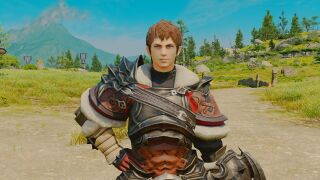 Pastel 3
 -
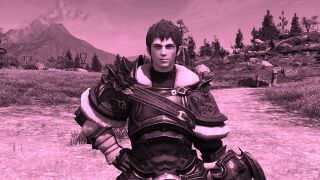 Monotone 1
 -
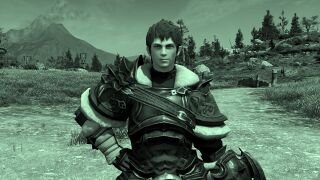 Monotone 2
 -
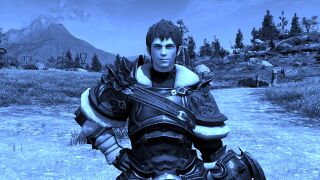 Monotone 3
 -
 Trailer
 -
 Echo
Echo -
 Aetherometer
 -
 Strengthened Effects


Depth of Field
Emulates a camera's depth of field, controlling what is 'in focus' and blurring what is 'out of focus' in the scene.
- The 'Value' slider controls the camera's 'aperture' size: the smaller the value, the more is blurred (out of focus).
- Maximum value is 33 (f/22)
- Minimum value is 0 (f/0.5)
- 'Enable manual focus' turns off the feature's auto focus and allows control over the camera's focus point via a slider below.
-
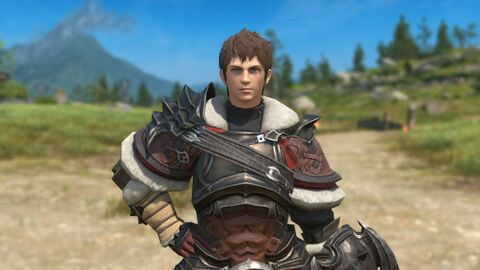 f-2.5 Auto-focus
 -
 f-1.6, Manual Focus 44


Portrait Preview
Adds black bars to the sides of the screen to emulate what will be in view when 'Portrait Mode' is applied. Automatically toggles off when Portrait Mode is selected.

Portrait Mode
Toggles portrait mode, rotating the screen 90 degrees to fit a vertical composition.
- Camera will be rotated either left or right depending on the setting set in General Settings.
 Screen Settings

Screen Effect
Applies a preset effect to the camera
Gallery of Screen Effects
-
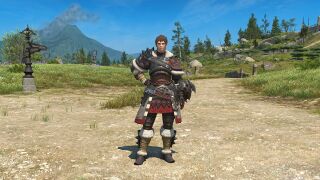 None
None -
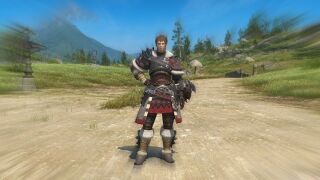 Reflection Blur
 -
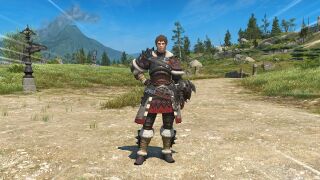 Saturated Linework
 -
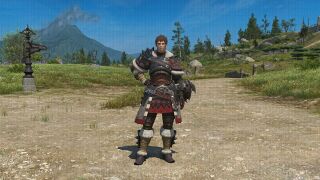 Canvas
 -
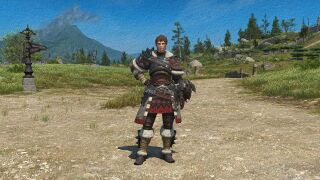 Wall
Wall -
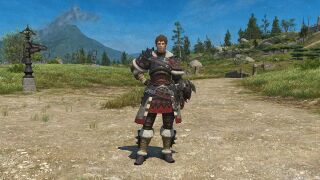 Frosted Glass
 -
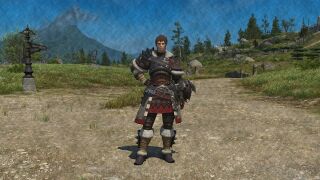 Construction Paper 1
 -
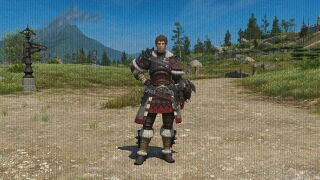 Construction Paper 2
 -
 Polka Dot 1
 -
 Polka Dot 2
 -
 Watercolor
 -
 Pencil 1
 -
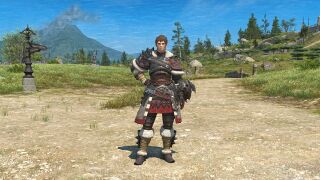 Pencil 2
 -
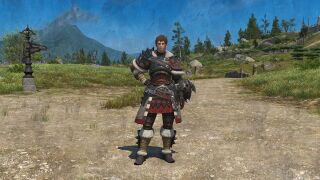 Pencil 3
 -
 Brilliant 1
 -
 Brilliant 2
 -
 Noise 1
 -
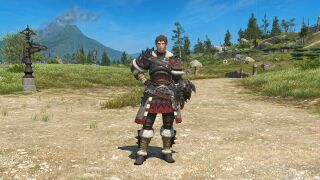 Noise 2
 -
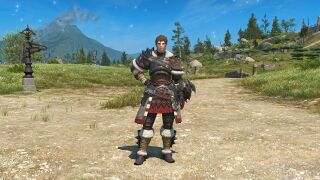 Particle
 -
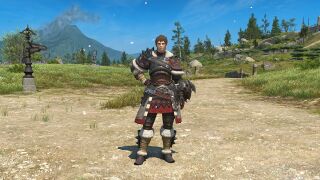 Sakura


Frames
Applies a frame to the camera
- Frames with a ◆ are unaffected by camera settings
- Frames with a ★ are affected by camera settings
- Some frames will change over time
- Example: Patch Logo (changes with every major patch)
See Frame Gallery for all frames
Soft Focus
Applies a bloom effect to the camera (0 = none, 100 = full strength)
-
 Soft Focus at 0
 -
 Soft Focus at 100


Limb Darkening
Applies a vignette effect to the camera
 Level: Controls the strength of the vignette (0 = none, 100 = full strength)
 Aspect Ratio: Controls the aspect ratio of the vignette (0 = 1:1, 10 = Screen Aspect Ratio)
 R/
R/ G/
G/ B: Controls the red, green, and blue values of the vignette color
- All at 0 = black vignette
- All at 100 = white vignette


-
 Level 5
 -
 Level 5, R/G/B 100
 -
 Level 5, Aspect Ratio 10


Sticker Mode
Switches UI to "Sticker Mode" and allows for decoration of screen with stickers.
 Lighting Settings
- Disable/Enable Camera Lighting 1
 /2
/2 /3
/3 : Turns on a the respective light at the position of the camera at the time of enabling the light, or turns off the light if already on
  Reset Lighting Settings: Returns lighting settings to default
 Reset Brightness Settings: Returns light RGB settings to default
- Light Type: Changes the intensity of light
- 1: Light strength
- 2: Medium strength
- 3: High strength


-
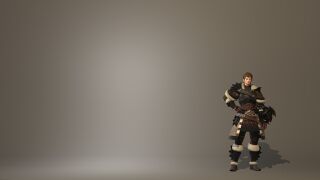 Type 1
 -
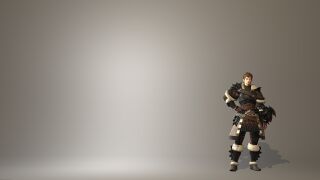 Type 2
 -
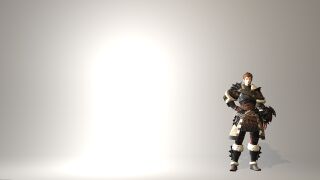 Type 3


- R/G/B sliders: Controls the color and intensity of the light
- Character Lighting: Applies lighting to all characters (both controlled and not controlled)
 Motion Settings
 Face Camera
All controlled actors will face the camera.
- Does not include actors that have had their motions disabled.
 Track Camera

Character gaze will follow camera movement.
 Loop Motion

Enable/Disable whether the recorded motion will be repeated at set intervals
Movement
Controls body movement of character
- Animations will vary depending on character race and gender.
 Play/Stop Movement: Starts/Stops the selected movement on current target
- Can be used on the following targets: PC, Companions, Pets, Minions, Mounts
- Some motions unavailable for pets/minions
 Initiate Movement: Starts the selected movement on all controlled characters
 Reset Movement: Resets movement from all controlled characters


-
Walk Forward
-
Run Forward
-
Sprint Forward
-
Slowly Strafe Left
-
Quickly Strafe Left
-
Slowly Strafe Right
-
Quickly Strafe Right
-
Walk Backwards
Lip Movements
Controls the mouth movement of character
- Animations will vary depending on character race and gender.
- Toggle Lip Movements (Selected character): Starts/stops the selected lip movement on current target
- Toggle Lip Movements (All): Starts the selected movement on all controlled characters
- Reset Lip Movements: Resets lip movement on all controlled characters
-
Type 1
-
Type 2
-
Type 3
Emotes
 Open Emote List: Opens the Emotes menu to apply an emote to the target character
- Note: Emotes set via the 'Emotes' section will only apply to yourself and your squadron. NPCs, enemies, party members, friends, etc. will not be affected.
- Disable Emote Overwriting: Resets emote movement set via emote

 Effect Settings
Status
Applies a Status effect to the target.
- Only the following status effects are available:
- Note: Cannot add status when target motion is disabled
- Apply/Remove Status: Applies the selected status to the current target
- Statuses can only be applied to PCs, companions, and pets. Cannot be stacked with current statuses bearing effects.
- Apply Status to All: Applies the selected status to the current target
- Reset Status: Returns to default


Wet Attire
Applies a water effect to the selected target.
- Enable/Disable Wet Attire (Target): Enable/disable wet attire effect on current target
- Enable/Disable Wet Attire (All): Enable/disable wet attire effect on all controlled characters
- Reset Wet Attire Settings: Disable wet attire effect on all controlled characters
-
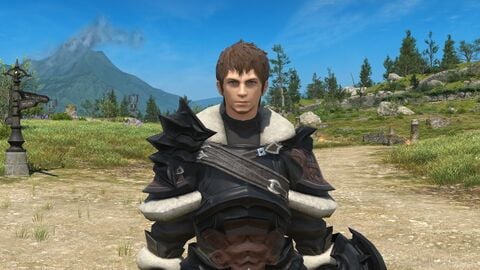 Disabled
 -
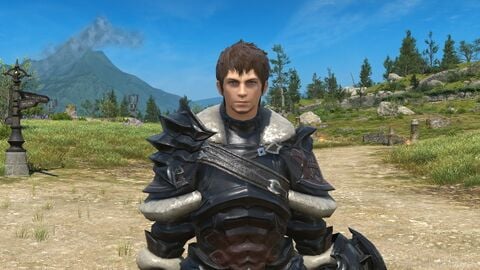 Enabled


 Character Display Settings
Controlled Character
- Self: Display/Hide Player's character
- Player's Minion: Display/Hide Player's minion
- PC (Player Character): Display/Hide controlled Player Characters
- Companion: Display/Hide controlled Companions
- Pet: Display/Hide controlled Pets
- Minion: Display/Hide controlled Player Characters' minions
- NPC: Display/Hide controlled NPCs
Non-controlled Characters
- PC: Display/Hide non-controlled Player Characters
- Companion: Display/Hide non-controlled Companions
- Pet: Display/Hide non-controlled Pets
- Minion: Display/Hide non-controlled Player Characters' minions
- NPC (includes certain enemies): Display/Hide non-controlled NPCs
- Enemy (includes certain NPCs): Display/Hide enemies
- Object (Certain effects only): Display/Hide certain objects
| Self Only | Self and NPCs Only | Controlled Character Only | Non-controlled Character Only | PCs Only | Companions, Pets, and Minions | NPCs Only | Enemies Only | |
|---|---|---|---|---|---|---|---|---|
| Self | 1
|
1
|
1
|
0
|
1
|
0
|
0
|
0
|
| Player's Minion | 0
|
0
|
1
|
0
|
0
|
1
|
0
|
0
|
| PC | 0
|
0
|
1
|
0
|
1
|
0
|
0
|
0
|
| Companion | 0
|
0
|
1
|
0
|
0
|
1
|
0
|
0
|
| Pet | 0
|
0
|
1
|
0
|
0
|
1
|
0
|
0
|
| Minion | 0
|
0
|
1
|
0
|
0
|
1
|
0
|
0
|
| NPC | 0
|
1
|
1
|
0
|
0
|
0
|
1
|
0
|
| PC (Non-controlled) | 0
|
0
|
0
|
1
|
1
|
0
|
0
|
0
|
| Companion (Non-controlled) | 0
|
0
|
0
|
1
|
0
|
1
|
0
|
0
|
| Pet (Non-controlled) | 0
|
0
|
0
|
1
|
0
|
1
|
0
|
0
|
| Minion (Non-controlled) | 0
|
0
|
0
|
1
|
0
|
1
|
0
|
0
|
| NPC (includes certain enemies) (Non-controlled) | 0
|
1
|
0
|
1
|
0
|
0
|
1
|
0
|
| Enemy (includes certain NPCs) | 0
|
0
|
0
|
1
|
0
|
0
|
0
|
1
|
| Object (certain effects only) | 0
|
0
|
0
|
0
|
0
|
0
|
0
|
0
|
 General Settings
- Face Camera on Activation: When enabled, controlled characters will face the camera when opening Group Pose
- Enable Roll Angle Correction: Determines whether camera tilt and pan movements follow the screen orientation (enabled) or remain fixed (disabled) when the camera is roll-rotated.
- Toggle Control Guide On/Off: Displays/Hides the Control Guide that appears by default on the left-hand side.
Portrait Mode Settings
- Rotate Left/Rotate Right: Sets whether enabling Portrait Mode turns the camera left or right
- Remove Aspect Ratio Limits:
Motion/Subject Settings
- Select Action: When enabled, if a player has used an action or spell before entering Group Pose, that action will play.
- Player must exit group pose to apply battle action changes
- Select NPC Currently Facing: Allows the Player to target select NPCs that are facing the Player's character
- Player must exit group pose to apply changes
- Changes are inapplicable on select NPCs
Eye Settings
- Eyelid Tracking Intensity: Controls how open/closed the eyelids are when eye tracking is enabled
- 0 = Eyes fully open, 100 = Eyes more open when target is looking up, more closed when target is looking down
- Default value is 25
- Enable Eyelid Adjustments: Allows control over how open the eyelid is.
- Left/Right sliders: Sliding to the right opens the eyelid, while sliding to the left closes it.
 Save & Load Settings
Use the  Save Settings and
  Load Settings to save configurations of camera and lighting settings, then load them again later.
Camera Settings
Saving the camera settings saves:
- Camera position
- Camera zoom
- Angle of View
- Roll Angle
Lighting Settings
Saving the lighting settings saves:
- Lighting 1 Position, Type, and Color
- Lighting 2 Position, Type, and Color
- Lighting 3 Position, Type, and Color
- Character lightning
- Manual brightness settings
Save Preferences
These settings controls how the camera and lighting settings are saved, based either on the direction your character is facing or the current orientation of the camera.
- Character Position: Settings are saved relative to your character's orientation. When loaded, settings will be adjusted based on the direction your character is facing.
- Camera Position: Settings are saved relative to the camera's current position. When loaded, settings will be adjusted irrespective of the direction your character is facing.
Additional UI
- Current target is displayed in the bottom left-hand corner of the UI
- Current time is displayed in the bottom right-hand corner of the UI
- Clicking on the time will switch it between Local Time, Server Time, and Eorzea Time